To set up Emergency SOS on Android, open Settings > Safety & emergency > Emergency SOS and tap Start setup. After that, pressing the power button 5 times or more starts an emergency call and can share your location with your emergency contacts. Take two more minutes to add your medical information and emergency contacts so first responders can see them on your lock screen.
The steps below follow Google's emergency help page. Emergency SOS works on Android 12 and later. Menu names differ a little between phone brands, and some features only work in certain countries or with certain carriers.
Step 1: Add your medical info and emergency contacts
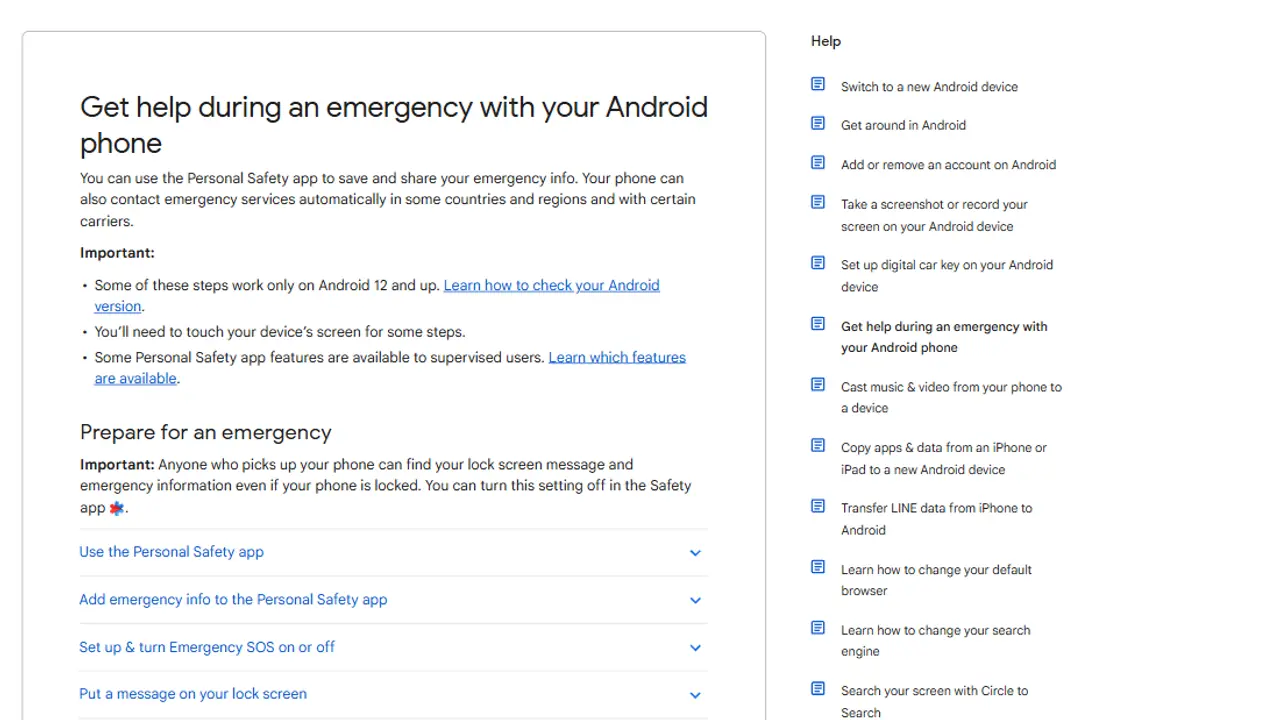
Many Android phones have Google's Personal Safety app. In your app list it appears as Safety. Your phone shows this info on the lock screen, so a paramedic can read it without unlocking the phone.
- Open the Safety app and sign in to your Google Account.
- Tap Your info > Medical information, then add what matters: blood type, allergies, medications.
- Go back and tap Emergency contacts > Add contact, then pick one or two people.
- To show this info when the phone is locked, tap Emergency info access > Show when locked.
Anyone who picks up your phone can read this info, even when it is locked. Add only what you would want a stranger helping you to know. If your phone has no SIM card or eSIM, you may still be able to call emergency services, but you won't be able to call your emergency contacts.
Step 2: Turn on Emergency SOS
- Open Settings > Safety & emergency > Emergency SOS and tap Start setup.
- Check the emergency number. Tap Change number if it is not your local one, then tap Next.
- Choose the contacts who should get your location and updates, and what to share with them.
- Allow the Safety app to use your location while using the app, so it can share where you are.
- Choose whether to record video and whether to play a loud alarm sound.
Next, choose how SOS starts. Open Emergency SOS and tap the settings icon under How it works:
- Touch & hold to start actions: you hold a red circle for 3 seconds before anything happens. This prevents accidental calls from a pocket or bag.
- Start actions automatically: a 5-second countdown starts, then the call is placed. This is faster if you can't look at the screen.
How to use Emergency SOS
Press the power button 5 times or more. Depending on your setting, hold the red circle or wait for the countdown. The phone calls emergency services, and any other actions you chose start at the same time, such as sharing your location with your contacts or recording video.
Know the limits before you rely on it:
- Emergency SOS does not work in airplane mode or when Battery Saver is on. If you use Battery Saver all day, see our guide to stopping apps from draining your battery instead.
- Your contacts get your live location only if the phone has Wi-Fi or mobile data.
- Emergency recording saves up to 45 minutes of video at about 10 MB per minute. If you turn on auto share, a link to the video can be sent to your emergency contacts. Google says you are responsible for following local laws on recording.
Step 3: Check Emergency Location Service
When you call or text an emergency number, such as 911 in the US or 112 in Europe, Android's Emergency Location Service (ELS) can send your location to responders automatically. It is used only during emergency calls or texts. To check it, open Settings > Location > Location services > Emergency Location Service (on some phones it is called Google Emergency Location Service) and make sure it is on. ELS works only in countries and on networks that support it. Your carrier may still send your location if it is off.
Step 4: Add a lock screen message
A short lock screen message helps someone return a lost phone. Open Settings > Display > Lock screen > Add text on lock screen and type something like "If found, call 01XXX XXXXXX". Don't use your own phone's number. If you lose the phone, you can also show a message remotely with Find Hub. Our Find Hub guide shows how.
Step 5: Review emergency alerts
Android can show government alerts for disasters, severe weather and missing children. Open Settings > Notifications > Wireless emergency alerts to choose which alert types you receive and how they sound. Keep the extreme and severe threat alerts on. You can turn off monthly test alerts in Developer options. Our Developer options guide explains how to open that menu safely.
Common questions
Can I turn Emergency SOS off?
Yes. Open Settings > Safety & emergency > Emergency SOS, tap the settings icon under How it works, and tap Turn off Emergency SOS. If accidental calls are the problem, switch to Touch & hold to start actions instead of turning SOS off.
My phone doesn't have the Safety app. What now?
On Android 12 and earlier, and on some brands, you can still add emergency contacts and medical info in Settings > Safety & emergency or in your phone's own emergency menu. Samsung, for example, has its own Emergency SOS settings with similar options.
Does Emergency SOS share my location all the time?
No. Emergency sharing starts only when you start an emergency action, such as Emergency SOS. Google lists car crash detection, Safety Check and crisis alerts as other features that use Location. They are available only on some phones and in some countries.