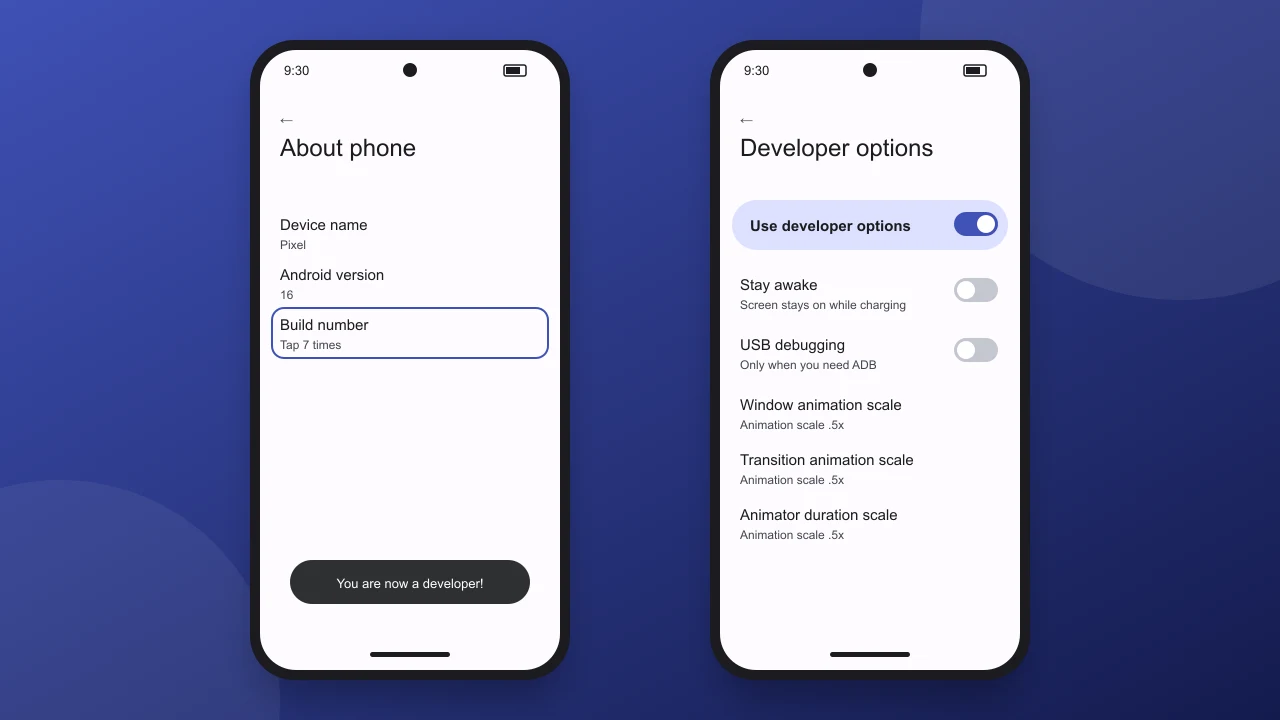
Android's Developer options screen has a few settings that ordinary users can safely change. The most useful one is animation speed: set the three animation scales to 0.5x and the phone feels faster. To unlock the menu, open Settings > About phone and tap Build number seven times. Most other options are for app testing, and you should leave them alone.
How to turn on Developer options
Developer options is hidden by default on Android 4.2 and later. Android's developer documentation describes the same steps for most phones:
- Find Build number. On a Pixel or OnePlus phone it is in Settings > About phone. On a Samsung Galaxy phone, go to Settings > About phone > Software information.
- Tap Build number seven times. Enter your screen lock PIN if you are asked. You then see the message "You are now a developer!"
- Open the new menu. Go back to Settings. On a Pixel, Developer options is in Settings > System. On other phones it is often at the bottom of the main Settings list.
Some phone makers rename or move the menu. If you cannot find it, search Settings for "developer".
Settings worth changing
1. Window, Transition and Animator animation scales
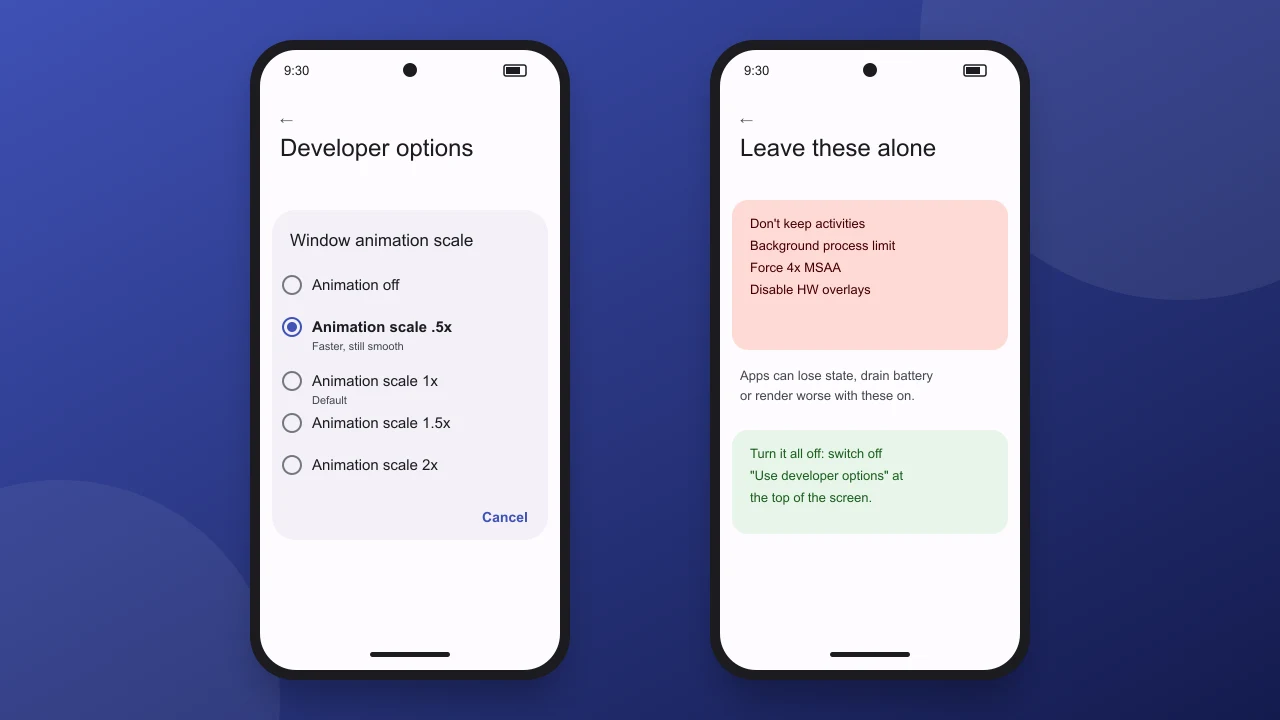
These three settings control how long the open, close and switch animations take. Google's documentation says a lower scale gives a faster speed. Set all three to 0.5x. The phone does the same work, but menus and apps appear sooner. If you choose Animation off, the screen changes very suddenly, and some apps use these animations to show progress.
2. Stay awake
Stay awake keeps the screen on while the phone is charging. This helps when you use the phone as a bedside clock or follow a recipe while it charges. Turn it off when you are done, so the screen doesn't stay on for hours.
3. Show taps
Show taps draws a circle where your finger touches the screen. Turn it on before you record a screen video for a friend or a tutorial, so viewers can see what you tap. Turn it off afterwards.
4. Quick settings developer tiles
Some options can go into your Quick Settings panel as tiles. After you add one, edit the panel and drag the tile into place. Then you can turn something like Show taps on and off without opening Settings.
5. USB debugging and Wireless debugging, only when you need them
USB debugging lets a computer control the phone through ADB (Android Debug Bridge). You need it for tasks like advanced backups and some rooting tools. Our Magisk rooting guide explains when it applies. On Android 16 and later, Wireless debugging does the same over Wi-Fi after you pair the phone with the computer. Turn both off when you are finished. A computer you have approved has deep access to the phone.
Settings to leave alone
These options are meant for app developers. On a phone you use every day, they can make things worse:
- Don't keep activities closes an app's screens as soon as you leave them. Apps then lose what you typed or where you were.
- Background process limit stops apps from running in the background. Chat messages and alarms can arrive late. For battery savings, use the normal battery settings in our background battery guide instead.
- Force 4x MSAA makes edges smoother in some older OpenGL ES 2.0 games, but it adds GPU work and uses more battery.
- Disable HW overlays makes apps share video memory. Google's documentation says this uses a lot of processing power.
- Select mock location app fakes your GPS location for testing. Some banking, delivery and game apps may stop working while it is on.
How to turn Developer options off again
Open Developer options and switch off Use developer options at the top. Google's documentation says that when this switch is off, most of the options stop working. On most phones the menu then disappears from Settings until you tap Build number seven times again. If a setting caused a problem, turning the whole menu off usually puts things back to normal.
Is it safe to turn on Developer options?
Turning the menu on does not change anything by itself. Risk only comes from the options you change. Animation scales, Stay awake and Show taps are easy to undo. USB debugging is the main one to watch: only allow computers you own, and decline any debugging prompt you didn't expect. Before you test new apps, see how to install and update open-source apps safely.
Common questions
Does setting the animation scale to 0.5x save battery?
Any change is too small to notice. The real benefit is that the phone feels quicker, because you wait less for each animation.
Will Developer options void my warranty?
No. It is a standard Android menu that the phone maker includes. Unlocking the bootloader or rooting is a different step, and that step can affect warranty or app support on some phones.
Why don't I see the same options as this guide?
Phone makers add, remove and rename options, and new Android versions move things. If an option isn't there, search Settings for its name, or check your phone maker's support pages.