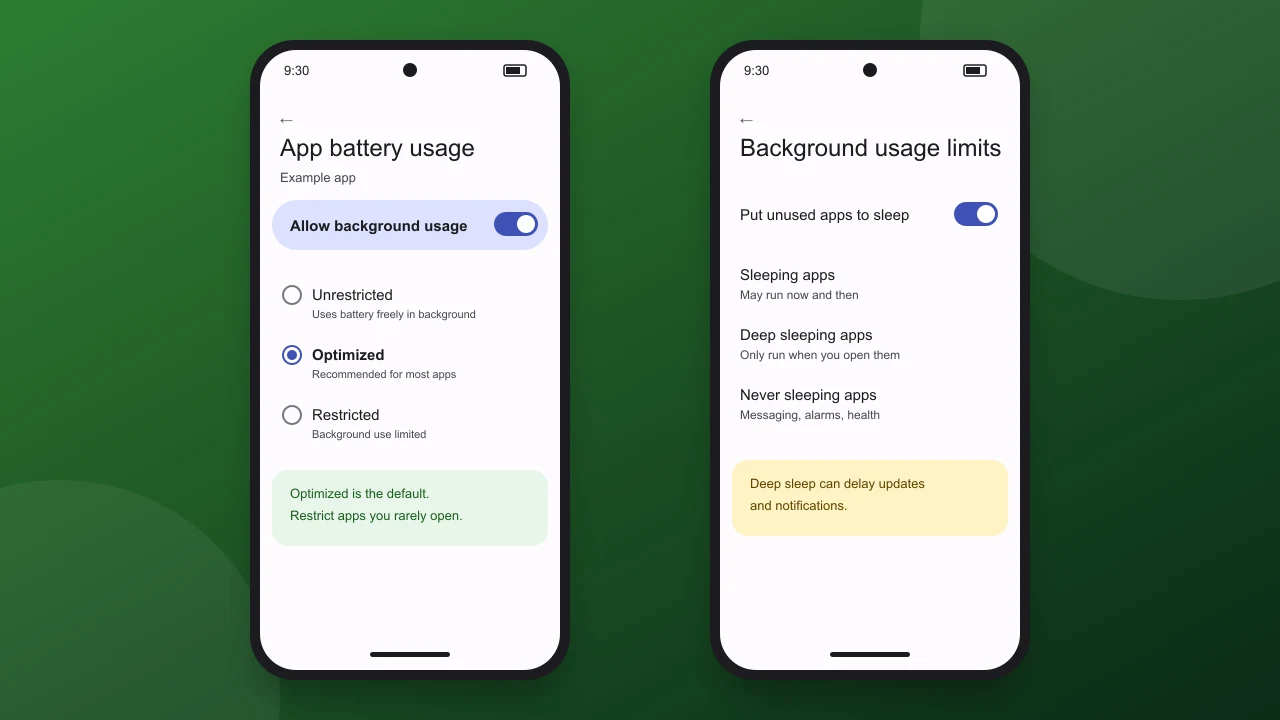
To stop an Android app from draining battery in the background, open Settings > Apps, choose the app, then open App battery usage and choose Restricted, or turn off Allow background usage. Keep Adaptive Battery on for everything else. On Samsung Galaxy phones, use Background usage limits to put rarely used apps into deep sleep.
First, find the apps that really drain your battery
Don't restrict apps at random. Open Settings > Battery > Battery usage to see which apps used the most power since the last full charge. Video, maps and games use a lot of power while they are on screen. That is normal. Look for apps that use a lot of power in the background even though you hardly opened them.
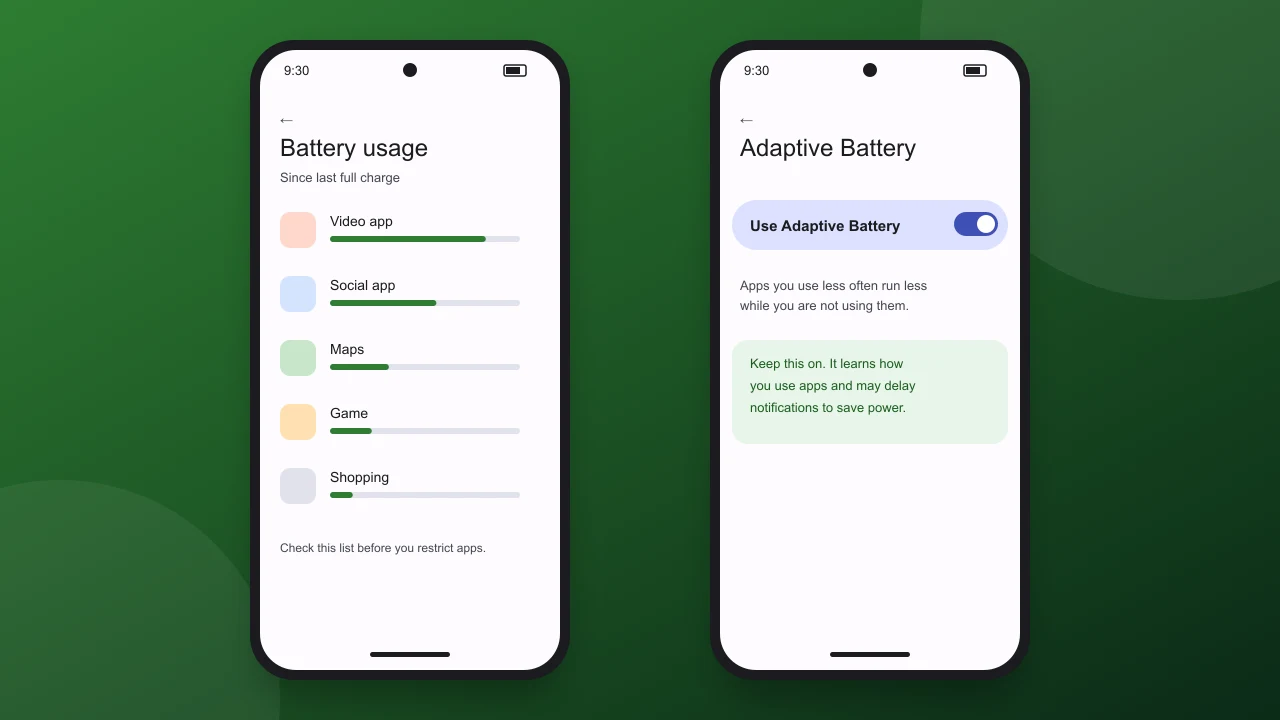
Keep Adaptive Battery on
Google's Pixel help says Adaptive Battery makes apps you use less often run less while you are not using them. It is on by default. To check it on a Pixel, go to Settings > Battery > Battery Saver > Adaptive Battery and turn on Use Adaptive Battery. Google also says that after you set up a new phone or reset it, the optimization can take a few weeks to take full effect.
Limit one app's background use (Pixel and most Android phones)
On Android 14 and later, Google lists these steps for Pixel phones. Most other phones with Android 14 or later use similar names:
- Open Settings > Apps > See all apps and tap the app.
- Tap App battery usage.
- Under Allow background usage, choose a level:
- Optimized is the default and fits most apps.
- Restricted limits background work. Use it for apps you only use when the app is open, such as shopping or travel apps.
- Unrestricted lets the app run freely. Use it only for apps that must stay active, such as a fitness tracker during a workout.
Google warns that if you turn off battery optimization for an app, it can run more while you are not using it, even when Adaptive Battery is on. Some essential system services can't be optimized.
Samsung Galaxy: sleeping and deep sleeping apps
Samsung's support page describes these options under Settings > Battery and device care > Battery > Background usage limits:
- Put unused apps to sleep automatically puts apps you haven't used in a while to sleep.
- Sleeping apps may still run in the background now and then.
- Deep sleeping apps never run in the background. They only work when you open them.
- Never sleeping apps are always allowed to run. Add your messaging, alarm and health apps here.
Samsung notes that sleeping apps may get updates and notifications late. Deep sleep is a good fit for apps you open once a month. It is a poor fit for any app you rely on for alerts.
Which apps should you restrict?
- Good choices: shopping, food delivery, travel booking, games and other apps you only use while they are open.
- Bad choices: messaging, email, alarms, calendar, banking security apps, smartwatch companion apps and backup apps. If you restrict these, alerts may come late or not at all.
- Uninstall instead: if you never open an app, removing it saves battery and storage. It also closes one more possible security risk. See our checklist for testing an app before you switch.
Other settings that help
- Battery Saver reduces background activity and visual effects when you need the charge to last.
- Screen brightness and timeout: a bright screen and a long timeout often use more battery than any background app.
- Weak signal: a phone with poor reception uses more power. Samsung lists weak or overlapping signals as a cause of higher battery use.
- Skip the Developer options limit: the "Background process limit" in Developer options is a testing tool. Our Developer options guide explains why you should leave it alone.
Common questions
Will restricting an app stop its notifications?
It can. A restricted app has less time to run in the background, so it may check for new content less often. Leave messaging and alert apps on Optimized.
Should I use a task killer or a "battery booster" app?
No. Android already manages background apps. Swiping apps away or using task killers can make apps start again from scratch, and that can use more battery. Use the built-in settings above instead.
How do I undo a restriction?
Open the same screen and choose Optimized again. On a Samsung phone, remove the app from the Sleeping or Deep sleeping list. The app goes back to normal at once.
Why does my battery drain faster after an update?
Google says it is normal for a Pixel to use a little more battery right after a software update, while the phone finishes optimizing. If the drain continues after a few days, check battery usage again.