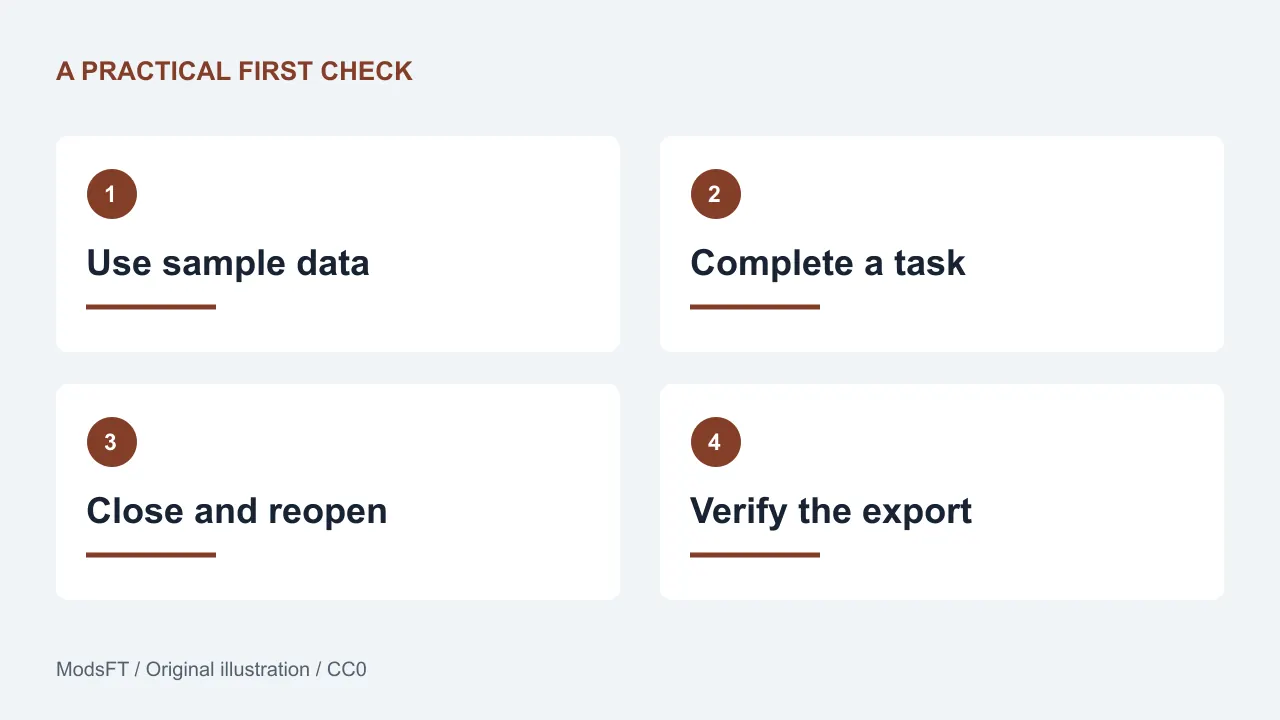
How should you test an open-source Android app before relying on it? Use disposable data to complete a real task, close and reopen the app, check permissions, try the task offline where appropriate, and verify an export or backup. Keep a note of the app version and installation source so your result can be repeated.
This is a functional evaluation you can perform yourself. It is not a security audit or evidence that an application is safe in every situation. The aim is to find whether a particular version fits your device and your work before you move your only copy of important information into it.
1. Define a result you can recognize
Choose one short workflow: make and find a note, browse a sample photo folder, play a local video or download a public podcast episode. Write what success means in one sentence. For example: a note created without a connection should still be present after the app is closed and reopened.
Record the app version, source, Android version and device model. Include any setting you change during the trial. This makes a later comparison useful: a result on one build and device should not be presented as proof about every release or phone.
2. Prepare data you can afford to lose
Use a few copied photos, an invented note or a public sample document. Keep real credentials, private conversations and irreplaceable files out of an exploratory trial. If the workflow involves import, work from a copy and leave the original somewhere separate.
Some actions change files outside the app. A gallery's move or delete command can affect the actual picture, and clearing an app's storage can remove local information. Read prompts before confirming them. You can learn what the app does without experimenting on your entire library.
3. Complete the core workflow and reopen it
Carry out the task from start to finish. Change a small detail, navigate away, close normally and reopen. Check whether the result remains, whether the app communicates saving clearly and whether you can find the item again.
If the feature exports a file, open that export through the intended receiving tool. Inspect its content, not only its filename or size. For a backup feature, follow the documented restore method using a sample. A backup that has never been checked is an assumption about recovery.
4. Match permissions to the feature you used
Read requests when they appear and connect each one to the current task. A feature can need photo, camera or microphone access, but you should understand why. Review the app's permissions in Android settings and use a narrower option when your device offers one that fits the task.
Android's available permission choices vary by version and feature. Google's permission guide explains where to review them. A permission prompt by itself is not proof of abuse, and an app without many prompts is not automatically private. Use it as one piece of the evaluation.
5. Check offline behavior and reconnection separately
If offline use matters, prepare the sample while connected, then use the device's normal network controls to disconnect. Try the core task and reopen the app. Note what works locally and what needs a server, rather than treating offline support as an all-or-nothing label.
Reconnect and check for pending changes, duplication or conflict messages. For a sync tool, use harmless sample records on each device and read how conflicts are handled. Never deliberately create conflicting edits in your only copy of important work just to test the feature.
6. Try the phone conditions you actually use
Increase text size through Android settings, rotate where appropriate and use dark mode if you prefer it. Look for clipped labels, controls hidden behind the keyboard and dialogs whose final action cannot be reached. If you use a screen reader or external keyboard, include it in your own trial.
Battery and storage observations need context. A download, first launch or large import can behave differently from ordinary use. Record what happened and the conditions instead of publishing a broad performance claim from a brief impression.
7. Turn a problem into a useful bug report
Check the project's issue tracker and reporting instructions first. Search for the same behavior on the same version. If you report it, explain what you expected, what happened and the smallest sequence that reproduces it.
- App version and installation source.
- Android version and relevant device details.
- Numbered steps using a harmless sample.
- Expected result and observed result.
- Whether it happens every time or intermittently.
- A reviewed screenshot or log only if it helps.
Remove names, notifications, email addresses, tokens and other private details from evidence. For a suspected vulnerability or sensitive data problem, use the project's private security reporting route where available instead of posting secrets in a public issue.
A short record you can reuse
Keep a note with four headings: task, setup, result and limitation. For example: local video playback; version and source recorded; sample played and resumed; subtitles not checked. That is more honest and useful than calling an application fully tested after a single successful action.
After an update, rerun the task that matters most before removing old exports or changing another part of your setup. The same small sample gives you a consistent way to compare behavior without inventing a score.
Common questions
Does a successful trial prove an app is secure?
No. Functional checks show how your sample behaved. Security assessment needs different expertise and evidence, and even that has a defined scope.
Should I clear storage or reinstall to test a bug?
Only if you understand the consequences and have a verified way to recover anything important. Start with non-destructive reproduction steps. Mention an untested suggestion rather than risking valuable data.
What if the app fails one check?
Decide whether that behavior affects your essential task, check documentation and report a reproducible problem where useful. A missing optional feature and loss of saved data deserve different decisions.
Choose a candidate from our Android app guide, then follow the installation and update checklist to keep its source consistent.
Sources and method
This checklist is an original ModsFT evaluation method, not a report of completed device tests. Android permission guidance was reviewed on 30 October 2026 using Android Help. For reporting, follow the chosen project's own contribution and security instructions.