To find a lost Android phone, open android.com/find in any browser, or the Find Hub app on another Android device, and sign in with the Google Account on the lost phone. You can see it on a map, make it ring for 5 minutes even on silent, lock it with a message, or erase it. Find Hub is the new name for Find My Device, and it works best if you check a few settings before anything goes missing.
What Find Hub can do
According to Google's lost-device help, Find Hub gives you four actions for a lost phone, tablet or Wear OS watch:
- Locate: shows the device on a map, with a circle that tells you how accurate the location is. If the current location is not available, you may still see the last known one.
- Play sound: rings the device at full volume for 5 minutes, even if it is set to silent or vibrate.
- Mark as lost: locks the device with your PIN, pattern or password and shows your contact details and a message on the lock screen.
- Factory reset: erases everything on the device. Use it only when you are sure you won't get the phone back.
Find Hub also tracks supported headphones and Bluetooth locator tags that you pair with Fast Pair, so you can use the same app for earbuds and keys.
Set it up before you lose your phone
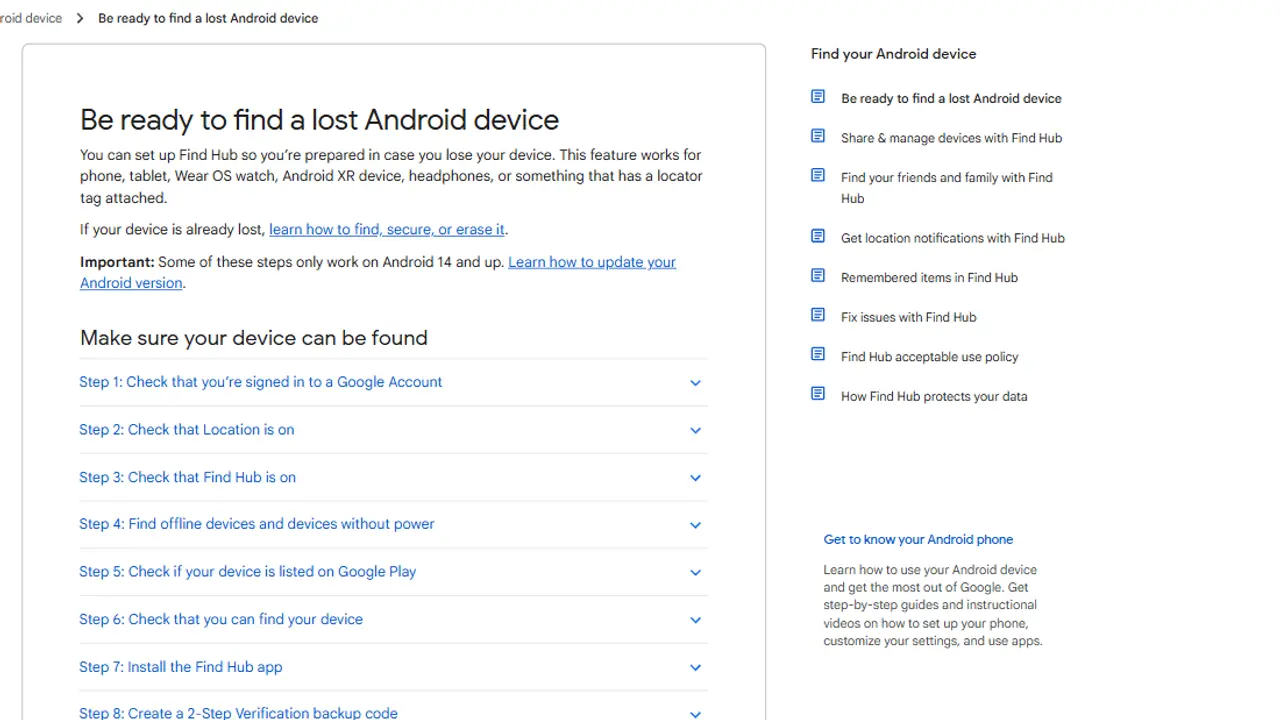
Find Hub turns on automatically when you add a Google Account, but some settings can be off. Google's setup checklist lists the steps below. Some of them only work on Android 14 and later, and menu names can differ slightly between phone brands.
- Check your Google Account. Open Settings > Passwords, passkeys and accounts and confirm your account is listed.
- Turn on Location. Open Settings > Location and turn on Use location.
- Turn on Find Hub. Open Settings > Security > Find Hub and check that Allow device to be located is on.
- Set a screen lock. A PIN, pattern or password is required for offline finding, and it is what Mark as lost uses to lock the phone.
- Check Google Play. Open play.google.com/library/devices and make sure Show in menus is ticked for the phone. A device you hide on Google Play does not appear in Find Hub.
- Test it. Open android.com/find on a computer and check that your phone shows up on the map.
Turn on offline finding
A thief can switch off mobile data, and a phone left in a taxi may lose signal. Offline finding helps in both cases. Open Settings > Google > All services > Find Hub > Find your offline devices and pick one of these options:
- Off: no stored locations and no help from the network.
- Without network: you only see the encrypted recent location saved while the phone was online.
- With network in busy places only: nearby Android devices help locate your phone in places like airports.
- With network everywhere: the network can help in busy and quiet areas.
Google says the Find Hub network is crowdsourced: other Android phones use Bluetooth to detect nearby devices and report the location with end-to-end encryption, so they can't see whose phone it is. On supported phones, such as the Pixel 8 series, the network can still locate the phone for several hours after it is switched off or the battery runs out, as long as Bluetooth and Location were on when it shut down.
How to find your phone when it is lost
- On a computer, go to android.com/find. On a friend's Android phone, open the Find Hub app and tap Sign in as guest.
- Sign in with the Google Account that is on the lost phone. On Android 9 and later you may be asked for the lost phone's screen lock PIN.
- Select the phone from the list. The phone gets a notification that it is being located.
- Look at the map. If the phone is within about 10 meters, tap Find nearby in the app to get a shape that fills in as you get closer.
- If you think it is nearby, tap Play sound. If it is somewhere else, tap Mark as lost, add a phone number and a short message, and confirm.
Google notes that GPS can be accurate to about 20 meters outdoors but is less reliable inside buildings, and a location from cell towers can be off by a few thousand meters. If the circle on the map is large, don't go to the location alone. If you think the phone was stolen, contact the police instead of trying to get it back yourself.
Keep a way to sign in without your phone
This step is easy to miss. If your phone is your 2-Step Verification method, you may not be able to sign in to Find Hub after you lose it. Google recommends saving 2-Step Verification backup codes in advance: open your Google Account, go to Security & sign-in > 2-Step Verification > Backup codes, and keep them somewhere safe. A password manager is a good place for them, as long as you can open it on another device.
When to erase the phone
Erase the phone only if it is stolen or you are sure it's gone. A factory reset deletes all the data on it, may not delete the SD card, and removes the phone from Find Hub, so you can't locate it after that. If the phone turns up later, you will need your Google Account password to use it again, because Android's device protection blocks anyone else from setting it up.
Before you erase it, note the phone's IMEI number. Your mobile carrier can use it to block the phone. In Find Hub, select the phone and tap Settings to see the IMEI.
Common questions
Can I find my phone if it is switched off?
Sometimes. You will see the last location it saved while it was online. Some newer phones, such as the Pixel 8 series, can also be found through the Find Hub network for several hours after they shut down.
Does Find Hub work on Samsung phones?
Yes. Find Hub works on Android phones signed in to a Google Account, including Samsung Galaxy phones. Samsung also has its own find feature in Samsung account settings, and you can keep both turned on.
Can someone else track me with Find Hub?
Only people who can sign in to your Google Account, or people you choose to share a device with. Keep your account safe with a strong password and backup codes. For other safety settings worth checking, read our guide to Android scam protection and our Emergency SOS setup guide.