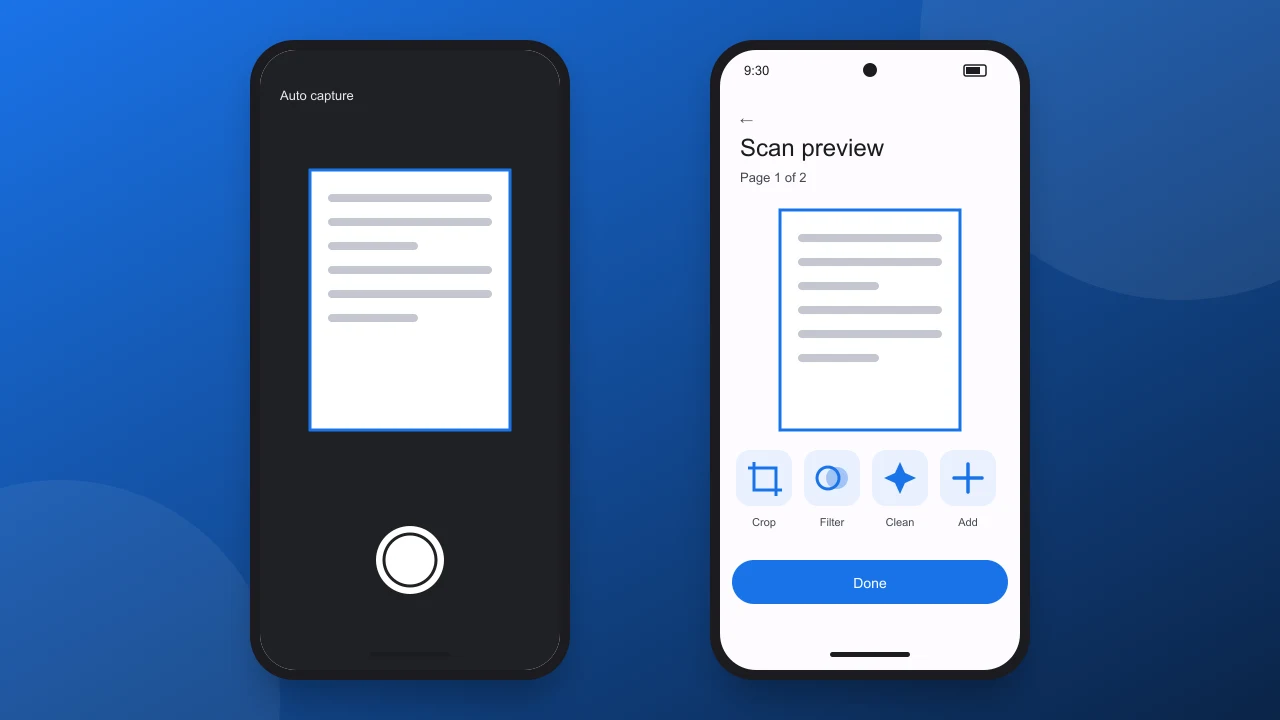
You can scan documents to PDF on Android for free with apps you probably already have. In Google Drive, tap the Camera button. In Files by Google, tap Scan. Point at the page, let the app crop it, and save. Both apps turn your photo into a clean PDF, and you don't need a separate scanner app.
Option 1: Scan with Google Drive (saves to the cloud)
Google's Drive help describes these steps:
- Open the Google Drive app and tap Camera at the bottom right.
- Point your camera at the document. A blue outline shows where the image will be cropped. Choose Auto capture or Manual.
- Take the photo, then adjust the scan if needed:
- Crop & Rotate fixes the edges.
- Filter changes the colours, or makes the scan greyscale.
- Clean erases stains, fingers and marks.
- Add scans another page into the same file.
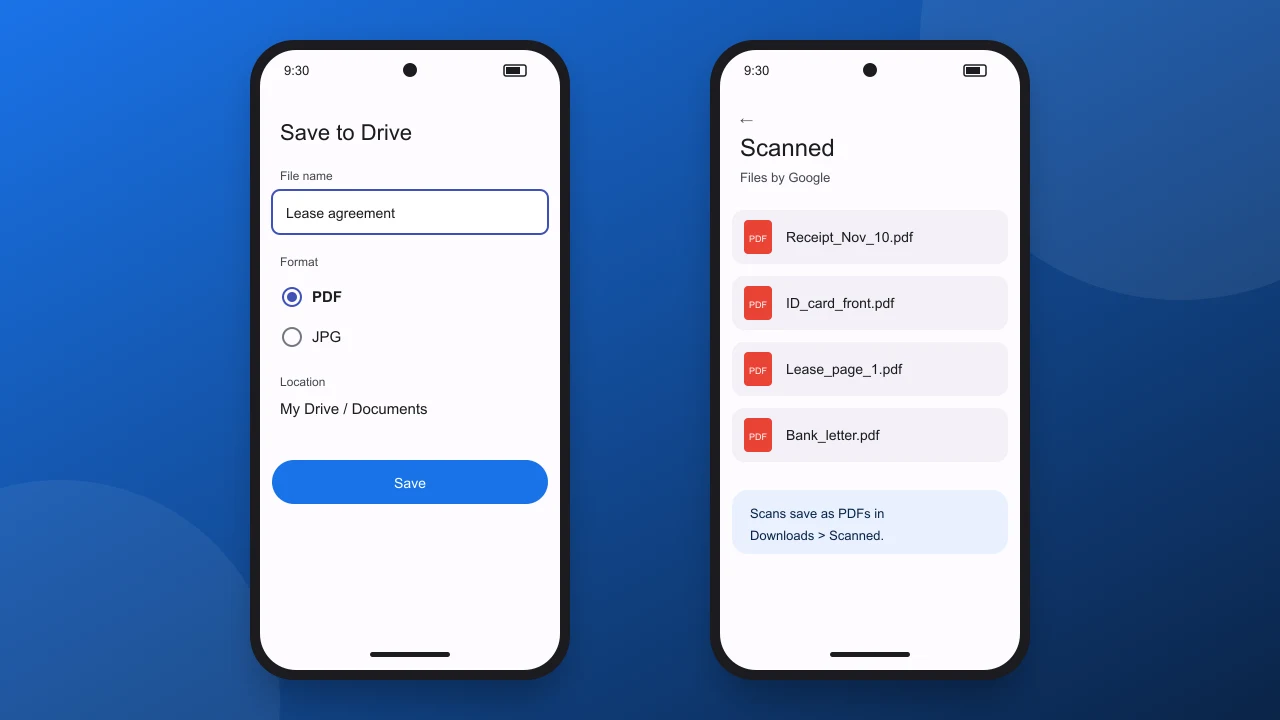
- Tap Done, name the file, choose .pdf and pick a folder under Location.
- Tap Save.
Drive saves the scan as a searchable PDF, so you can search for words inside it later. For quick access, add the Drive scan widget to your home screen. Google states that it doesn't use your Drive content for advertising.
Option 2: Scan with Files by Google (stays on your phone)
Use this if you'd rather not upload the document anywhere. Google's Files help lists these steps:
- Open Files by Google and tap Scan at the bottom right.
- Point your camera at the page and take the photo. Auto capture is available here too.
- Use Crop and rotate, Filter, Clean or Add as needed, then tap Done.
Files by Google saves scans as PDFs automatically, in a Scanned folder inside Downloads. To find them, tap Documents > Scanned, or search for "pdf".
Which option should you use?
- Google Drive is best when you want the PDF on every device, or want to share a link to it.
- Files by Google is best for private papers, such as ID cards and bank letters, because the file stays on your phone until you share it.
- A dedicated scanner app may add features such as text recognition across many pages or batch exports. If you need these, read the app's privacy policy first. Our CamScanner listing shows what one popular option offers.
Tips for a clean scan
- Put the page on a dark, flat surface so its edges stand out.
- Use daylight or an even room light, and keep your shadow off the page.
- Hold the phone straight above the page instead of at an angle.
- For multi-page documents, use Add so that all pages end up in one PDF.
- Check the preview and retake any page that is blurry.
Scan both sides of an ID card
Scan the front, tap Add, then turn the card over and scan the back. Both sides end up in one PDF, which is what most forms ask for. Crop tightly to the card edges so the file isn't mostly background.
If the scan looks dark or blurry
- Wipe the camera lens. A smudge is the most common cause of soft scans.
- Try a different Filter. A black-and-white filter often makes printed text sharper.
- Use Retake instead of trying to fix a bad photo afterwards.
- Turn off auto capture and take the photo yourself if the app keeps cropping the wrong area.
Share the PDF
In Google Drive, open the file and use the share option to send a link or add people. In Files by Google, open the Scanned folder, select the PDF and tap Share to send it by email or a messaging app. Before you send an ID or bank document, check that the recipient really asked for it.
Keep scanned IDs and documents safe
Scans of ID cards, bank statements and contracts are attractive to scammers. Don't send them through unknown links, and delete copies you no longer need. Our scam protection guide explains how fake requests for documents usually look.
Common questions
Can I turn a scanned PDF into notes or a quiz?
Yes. Upload the PDF to Gemini Notebook and ask questions about it. Our guide to turning PDFs into a study assistant explains how.
Can I scan to JPG instead of PDF?
Google Drive lets you choose .pdf or .jpg before you save. Files by Google always saves scans as PDFs.
Do scans fill up my phone?
A few pages take little space, but hundreds of multi-page scans add up. Move old scans to Drive or a computer, and see our guide to freeing up storage on Android for the rest of the clean-up.
Are these apps free?
Yes. Both apps are free from Google and are already installed on many Android phones.