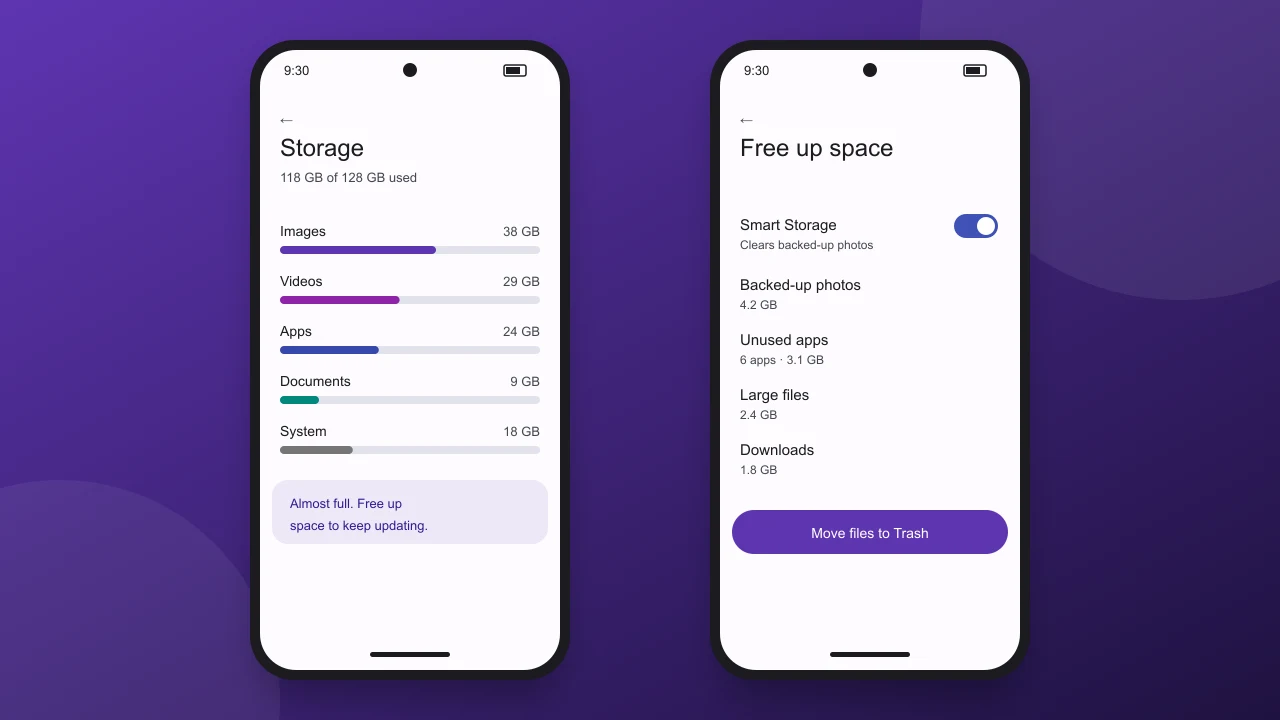
To free up storage on Android without losing your photos, back them up and let Google Photos remove the copies on your phone. Then clear junk files with Files by Google and archive apps you rarely use. Start with Settings > Storage to see what is actually filling your phone. Most phones also have a Free up space button there that lists safe items to remove.
Step 1: See what is using your storage
Open Settings > Storage. Android sorts your storage into categories such as images, videos, apps, documents and system. Google's storage help notes that some of these steps work only on Android 14 and later. Look for the one or two biggest categories, because that is where cleaning saves the most space.
Step 2: Use the built-in Free up space tool
- In Settings > Storage, tap Free up space.
- Scroll to a category, such as photos, downloads or apps you haven't used recently, and tap Select files.
- Select what you don't need and tap Move files to Trash.
On the same screen, open Menu > Settings and turn on Smart Storage. Google says it automatically clears backed-up photos and videos when your storage is almost full.
Step 3: Remove photo copies that are already backed up
Photos and videos usually take up the most space. If you back them up to Google Photos, you can delete the copies on your phone and still see everything in the app:
- First make sure backup is on and has finished. Google's Photos help stresses this, because the feature deletes photos from your device.
- Open Google Photos, tap your profile photo, then tap Free up space on this device.
- Check how much space it will free, then tap Free up.
Google says photos and videos less than 30 days old may stay on your phone. Everything you removed is still in your Google Photos library and at photos.google.com. Keep in mind that the free Google account storage is shared with Gmail and Drive.
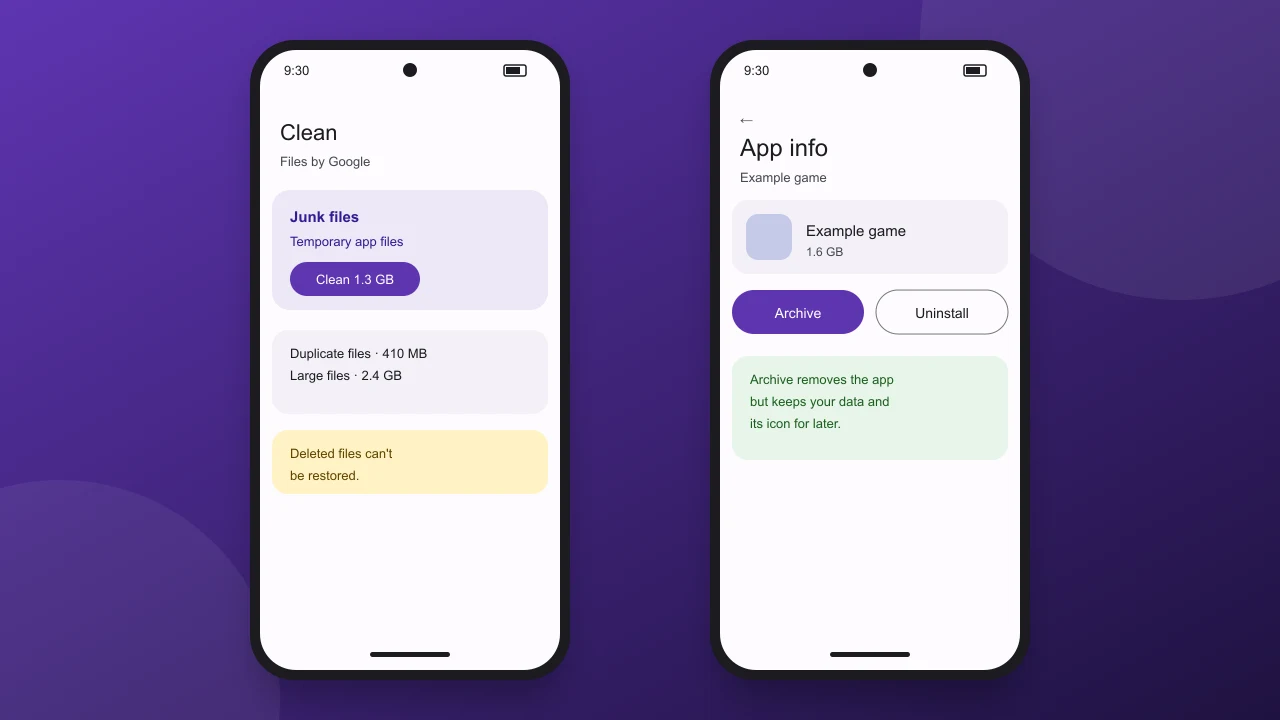
Step 4: Clear junk files with Files by Google
Many apps keep temporary files that build up over time. Files by Google can find them:
- Open Files by Google and tap Menu > Clean.
- On the Junk files card, tap Clean, then confirm with Clear.
Google says clearing junk files doesn't change app settings, but anything you delete in Files by Google is gone for good. The same Clean screen also offers cards for duplicate files, large files, old screenshots and WhatsApp media. Check those one at a time before you delete anything.
Step 5: Archive apps instead of uninstalling them
On Android 15 and later, you can archive an app. Go to Settings > Apps, choose the app and tap Archive. Android removes the app's software, permissions and temporary files, but keeps its icon and your data. Tap the faded icon later to reinstall the app with your data still there. The app must still be available in your app store.
Games and big editing apps are good candidates. To decide which apps are worth keeping at all, our guide on stopping apps from draining your battery shows how to spot apps you never open.
Step 6: Move big files off the phone
- Use a memory card if your phone has a microSD slot. Move videos and music there with Files by Google.
- Copy to a computer with a USB cable, then delete the copies on the phone once you have checked the files open on the computer.
- Clear chat media. Messaging apps save every photo, video and voice note you receive. Files by Google has a card for removing WhatsApp media, and most chat apps also have their own storage settings.
What not to do
- Don't install "cleaner" or "booster" apps. Android and Files by Google already do this job. Many cleaner apps show ads or ask for permissions they don't need.
- Don't clear an app's data unless you mean to reset it. Clearing storage or data removes logins and saved settings. Clearing the cache is the safer option.
- Don't delete files from the system folders. If you aren't sure what a file is, leave it.
Common questions
How much free space should I keep?
Leave enough room for app and system updates to download and install. If Android warns that storage is running low, clean up before the next big update.
Will Smart Storage delete photos that aren't backed up?
No. Google describes Smart Storage as clearing photos and videos that are already backed up.
Where can I find lighter apps?
Smaller, open-source apps often use less space. Start with our list of free open-source Android apps, or browse the apps catalog.