Gemini Notebook, the tool Google called NotebookLM until July 2026, can turn your PDFs into a free study assistant. Create a notebook for one course, upload your lecture notes and readings, and ask questions about them. It answers from the sources you add, so you can check each answer against your own material. The free plan allows 100 notebooks with up to 50 sources each.
NotebookLM is now Gemini Notebook
Google renamed NotebookLM to Gemini Notebook on July 16, 2026. It's still a separate product focused on research and learning. Google also announced syncing notes across the Gemini app and Search.
What the free plan includes
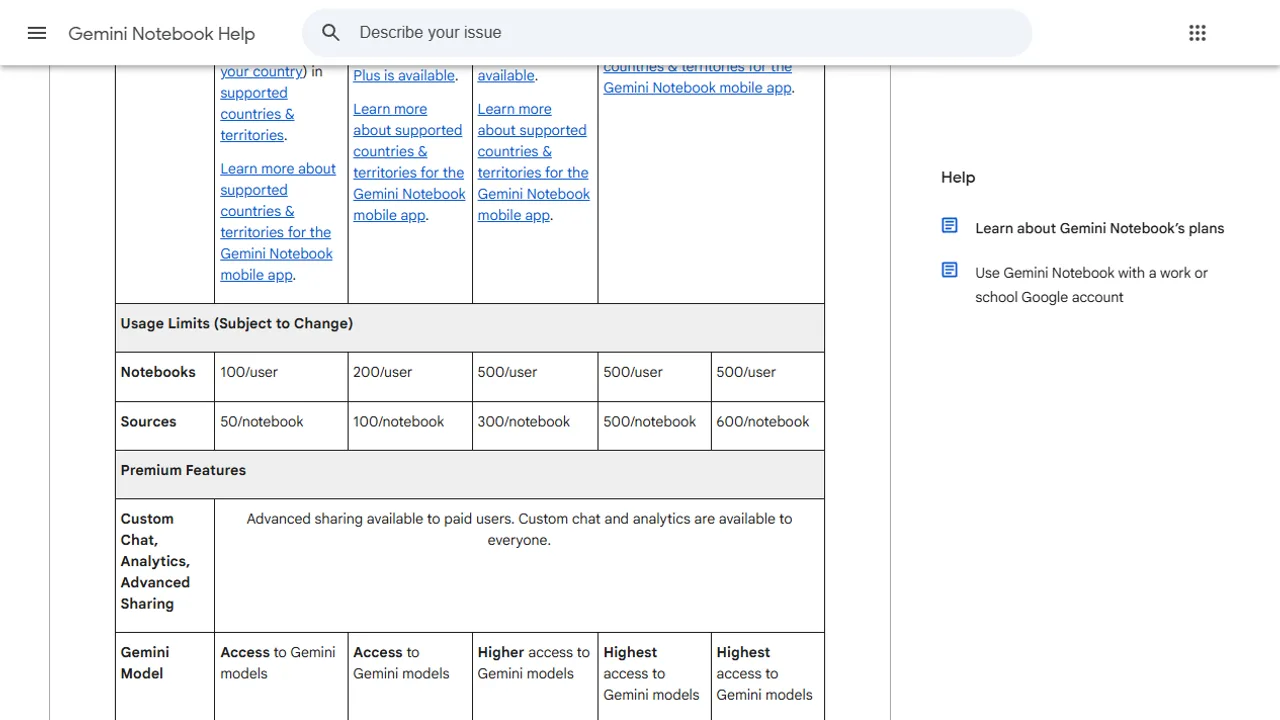
Gemini Notebook Help lists the free Standard plan limits. Google notes that these are subject to change:
- 100 notebooks per user.
- 50 sources per notebook.
- Each source can hold up to 500,000 words or 200 MB.
You can sign up free with a Gmail account. Paid Google AI plans raise the limits. Google AI Plus allows 200 notebooks and 100 sources per notebook. In India, South Korea and Vietnam, Google adds a visible watermark to generated outputs on the free plan.
How to set up a study notebook
- Create one notebook per course. Open Gemini Notebook and create a notebook with the course name. Keeping courses apart stops answers mixing up material.
- Add your sources. Select Add sources and upload your PDFs. Gemini Notebook also accepts Word, PowerPoint, text, Markdown, CSV and ePub files, Google Docs and Slides, web links, public YouTube videos, audio files and images. See the source types list.
- Read the source summary. Open a source to see its auto-generated summary. It's a quick check that the file uploaded correctly.
- Ask specific questions. Name the document in your question. "What are the three causes of inflation in 'Week 4 slides'?" works better than "Summarize this".
- Check the answer in the source. Open the passage the answer refers to and read it yourself before you rely on it.
If you import files from Google Drive, Gemini Notebook keeps them in sync. When you edit the original document, the source updates the next time you open the notebook.
Five study prompts to try
- "Make a 10-question multiple-choice quiz from 'Lecture 3' and give the answers at the end."
- "List the key terms in this chapter with a one-line definition for each."
- "Compare how 'Reading A' and 'Reading B' explain the same theory."
- "Create a one-week revision plan from these lecture notes before my exam on Friday."
- "Which topics in my notes are missing from the course outline?"
Gemini Notebook can also create study outputs such as flashcards, reports, slide decks and audio overviews from your sources. Use them as revision aids, and check facts against your notes.
A simple weekly study routine
- After each lecture: upload the new slides or notes the same day and read the source summary.
- Mid-week: ask for the key terms and a short quiz on that week's material. Write down every question you get wrong.
- End of week: ask the notebook to explain the topics behind your wrong answers, then reread those passages in the source.
- Before the exam: select all sources for the course and ask for a revision plan for the days you have left.
The routine works because you test yourself on your own material, not on a general summary from the internet. The notebook helps you find the right passage faster. Learning it is still your job.
Get better answers from your PDFs
- Use text-based PDFs. A scanned page saved as a picture may not read as well as a PDF with real text.
- Select fewer sources. To focus an answer, select only the relevant sources in the Sources panel.
- Upload only what you may use. Google asks you not to upload documents you don't have rights to. Your own notes and course files shared with you for study are a safe starting point.
- Keep the original. If you update or delete a source, outputs you already created don't change. Regenerate them after you replace a file.
Is your data used for training?
Gemini Notebook Help says your data isn't used to train Gemini Notebook unless you send feedback. If you rate an answer or send feedback, Google may review that interaction. Keep private details such as ID numbers and passwords out of your notebooks.
Common questions
Is Gemini Notebook free for students?
Yes. The Standard plan is free with a Gmail account. Eligible students can also get a free Google AI plan with higher limits for 12 months. Our Google AI student offer guide explains how to claim it.
Can it make diagrams for my notes?
Gemini Notebook can create infographics from your sources. For a custom diagram, try one of our Gemini image prompts and check the labels against your notes.