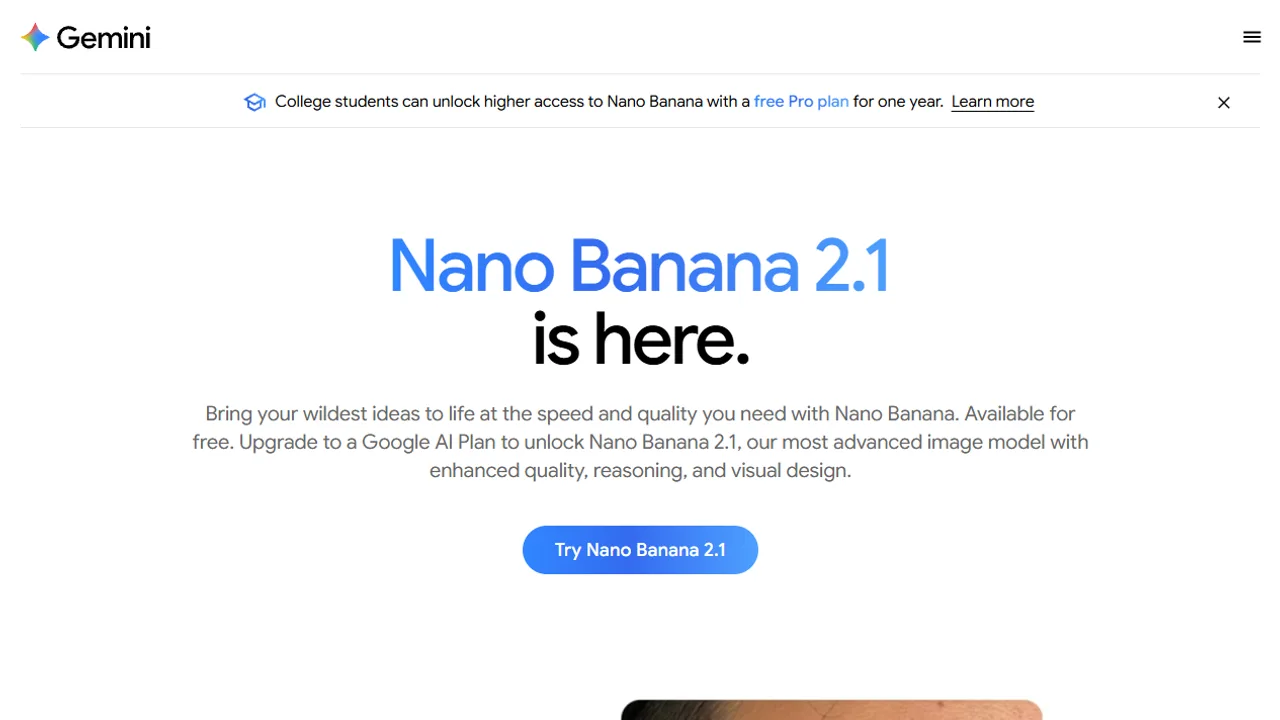
You can create AI images for free in the Gemini app. Sign in with a Google Account, describe the image you want, and Gemini generates it with Google's Nano Banana 2 model. The free plan has usage limits. The seven prompts below cover common jobs such as thumbnails, product photos, wallpapers and social covers.
What the free Gemini image tool includes
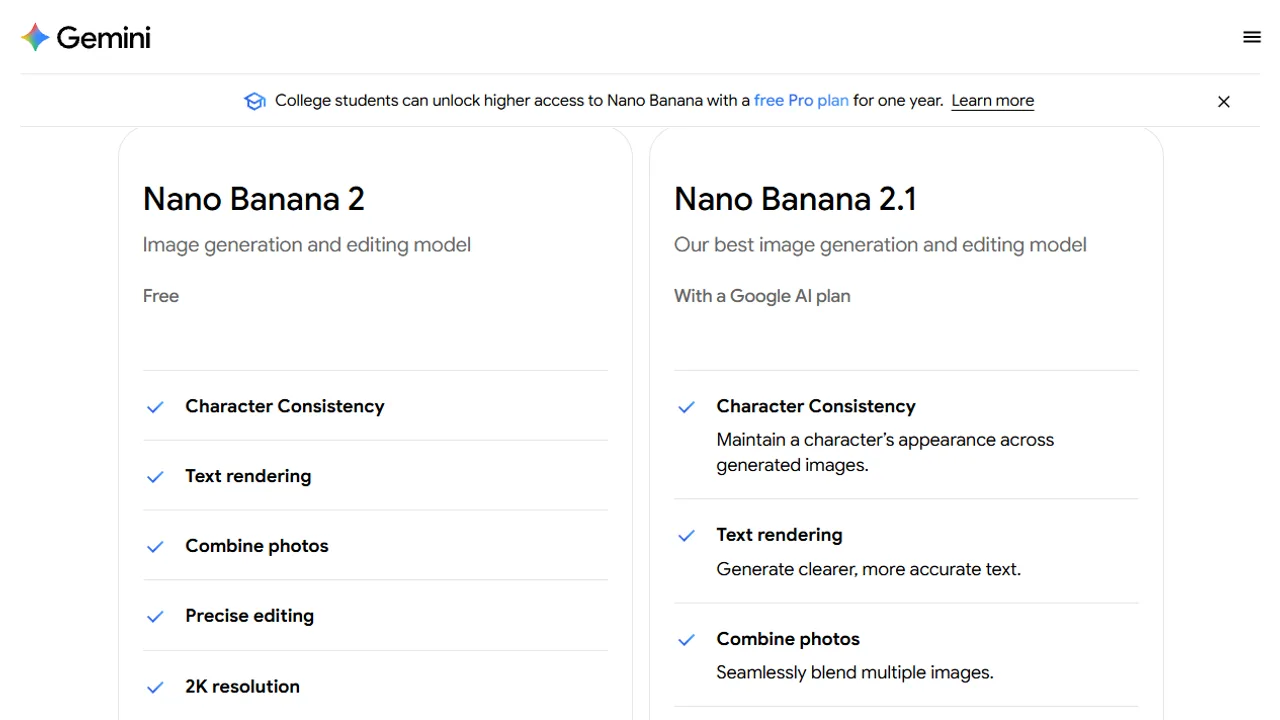
Google's Gemini image generation page lists Nano Banana 2 as the free model. It covers character consistency, text rendering, combining photos, precise editing and 2K resolution. Nano Banana 2.1, Google's newer image model, needs a Google AI plan. Paid plans also raise the number of images you can make.
Gemini uses compute-based limits. Gemini Apps Help explains that your limit depends on the prompt, the model and the length of the chat. It refreshes every five hours until you reach a weekly limit. Image generation is for users 18 and over, and availability varies by country.
A simple formula for better image prompts
Most weak results come from short, vague prompts. Build each prompt from four parts:
- Subject: what is in the picture, with one or two specific details.
- Setting and light: where it is and what time of day it looks like.
- Style: photo, flat illustration, 3D render, watercolor or another clear look.
- Format and text: the shape you need, such as 16:9 or 9:16, and any words that must appear.
Change one part at a time when you refine a result. If you rewrite the whole prompt, it's hard to tell which change helped.
7 Gemini image prompts you can copy
1. YouTube thumbnail
"Create a 16:9 YouTube thumbnail. A surprised student holding a phone that shows a green checkmark, bright desk lamp lighting, clean blue background. Add the large bold text 'Free for 12 months' on the left."
Check every letter of the text. Keep thumbnail text to three or four words so it stays readable at small sizes.
2. Product photo from your own picture
"Use my uploaded photo of this mug. Place it on a light oak table beside a window, soft morning light, shallow depth of field, realistic product photography. Keep the mug's logo and shape exactly the same."
Upload a clear photo you took yourself. Compare the result with the real product so the listing doesn't misrepresent it.
3. Phone wallpaper
"Design a 9:16 phone wallpaper. Calm mountain lake at dusk, low mist, deep navy and soft orange colors, minimal style, no text, leave the top third simple for the clock."
4. Social media cover
"Create a wide social media cover image, 3:1 ratio, for a small coding club. Flat illustration of laptops and code brackets on a light grey background, friendly colors, space on the right for a profile picture."
Each platform crops covers differently. Preview the image on your profile on a phone and on a computer.
5. Study diagram
"Make a clear labeled diagram of the water cycle for a school worksheet. White background, simple flat icons, arrows for evaporation, condensation, precipitation and collection, large readable labels."
Check the labels against your textbook. A diagram can look neat and still contain a wrong step.
6. Restyle your own photo
"Turn my uploaded photo into a watercolor painting. Keep the people's faces and poses recognizable, soften the background, warm afternoon colors."
Only edit photos of people who agreed to it. Don't use the tool to make images that pretend to be a real person or event.
7. Event poster with text
"Design a portrait A4 poster for a community book swap. Stack of colorful books on a park bench, cheerful flat style. Title text 'Book Swap', smaller text 'Saturday, 10 AM, Central Library'."
Gemini can place text in many languages. Still, proofread dates, times and names before you print.
How to make an image in Gemini
- Open gemini.google.com or the Gemini app and sign in.
- Type your prompt. Start it with "Create an image" or "Design" so Gemini knows you want a picture.
- To edit a photo, upload it first and then describe the change.
- Ask for one change at a time, such as "make the background darker", until the result fits.
- Download the image and check it at the size where you'll use it.
What if you hit the free limit?
Wait for the limit to refresh, or use shorter chats with fewer edit rounds. Students may qualify for a free Google AI plan with higher limits; see our guide to the Google AI student offer. For final touches such as cropping, adding a logo or exporting vector shapes, a free editor like Inkscape helps. Our guide to free video, audio and vector tools covers it.
Common questions
Can I use Gemini images for a business?
Read Google's terms and the Gemini policy guidelines for your use. Don't copy trademarks, logos or a real person's likeness without permission.
Why does the text in my image have mistakes?
Short text works best. Put the exact words in quotation marks in your prompt, then ask Gemini to fix any wrong letter.