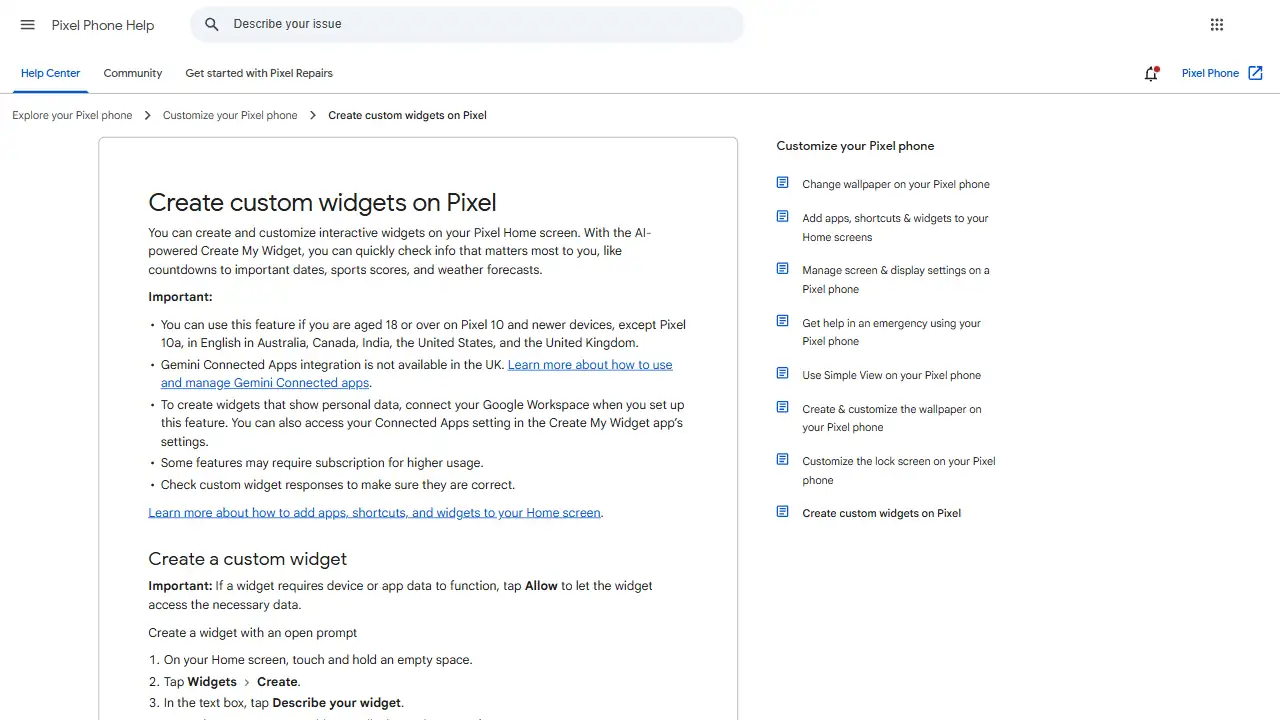
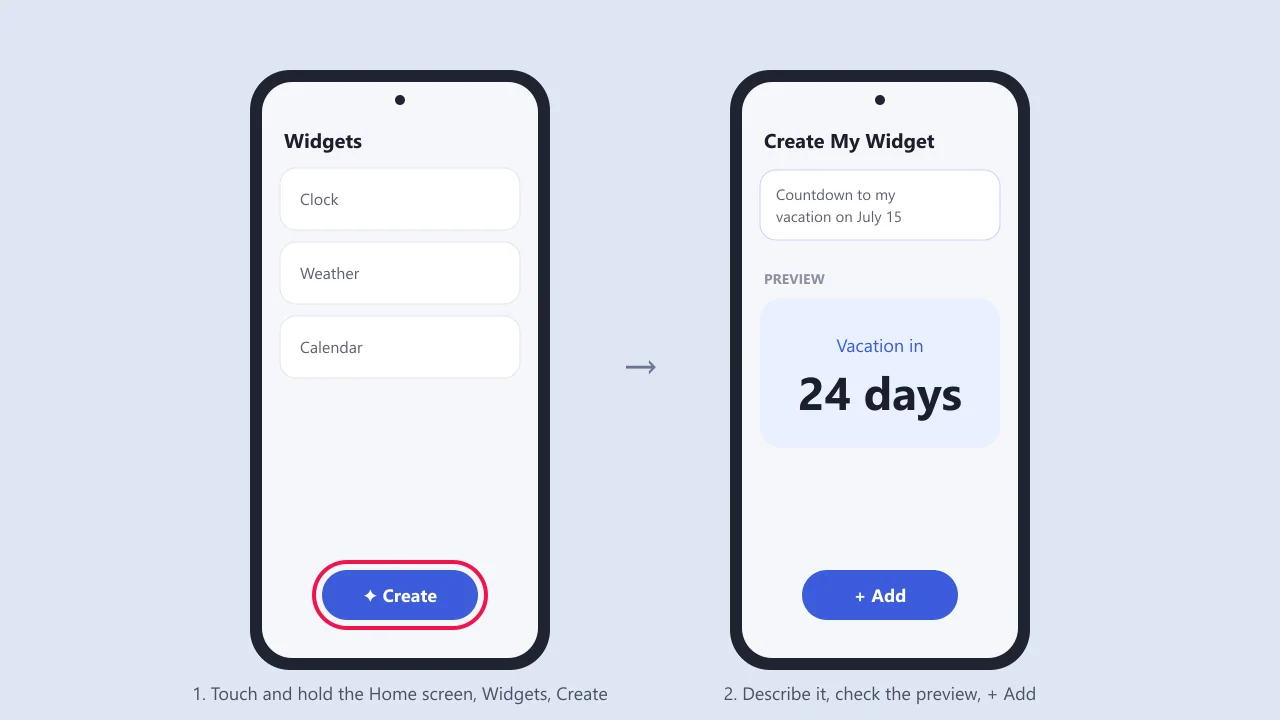
To use Create My Widget, touch and hold an empty part of your Pixel's Home screen, tap Widgets, then Create. Describe the widget you want, for example "Countdown to my vacation on July 15", check the preview and tap + Add. It arrived in Google's November 2026 Pixel Drop and works on Pixel 10 and newer, except the Pixel 10a, in English in the US, UK, Canada, Australia and India, for users aged 18 or over.
Below are the steps from Google's own help page, the limits worth knowing, and why the "Create My Widget APK" downloads circulating for other phones won't work.
Which phones get Create My Widget?
According to Google's Pixel Help page, you can use it if:
- you have a Pixel 10 or newer, but not a Pixel 10a;
- your phone is set to English;
- you are in Australia, Canada, India, the United States or the United Kingdom;
- you are 18 or older.
Google's November Pixel Drop post, dated November 10, says updates roll out over several weeks, so it may not appear on your phone on day one. Google also says custom widgets are coming to Pixel Watch 4 and Pixel Watch 5.
How to create a widget from a sentence
- On your Home screen, touch and hold an empty space.
- Tap Widgets, then Create.
- Tap Describe your widget.
- Type what you want it to show, such as "Show me the next soccer game", and tap Send.
- Check the preview and tap + Add.
If the widget needs data from your phone or an app, tap Allow when asked. Google's own examples include a spending tracker, a game-day widget in your team's colors, and a trip countdown that pulls in flight and reservation details.
Start from a template instead
On the same Create screen, pick a ready-made category such as Important dates, Sports & fitness or Finance, change the details if you like, and tap Add. Templates are the quickest way to see what the feature can do before you write your own prompt.
Edit a widget later
- Before adding it: on the preview screen, tap Edit, type the change and tap Send.
- Once it's on your Home screen: touch and hold the widget, tap Edit, type your update and tap Send.
Limits worth knowing
- Check what it shows. Google says to check custom widget responses for accuracy, because they are AI-generated.
- Personal data needs a connection. Widgets that show your own information need your Google Workspace connected, and Gemini Connected Apps integration is not available in the UK.
- Heavy use may need a subscription. Google says some features may require a subscription for higher usage.
Why "Create My Widget APK" downloads are fake
Create My Widget is part of Pixel 10's software and Google's Gemini features, limited by Google to certain phones, countries and languages. An APK file from a website can't add those requirements to a Samsung, Xiaomi or older Pixel phone. At best it won't work; at worst it's malware using a popular name. Wait for Google to expand the feature, and get it through a system update on a supported Pixel. The same rule applies to the fake "GTA 6 for Android" downloads in our guide to spotting fake GTA 6 apps.
Questions people ask
Why don't I see Create in my Widgets list?
Check that your Pixel is a supported model, set to English, in a supported country, and fully updated. Google rolls Pixel Drops out over several weeks, so it can arrive later than the announcement.
Does it work on Pixel 9 or older?
Not according to Google's help page, which lists Pixel 10 and newer, except Pixel 10a. Older Pixels got other features in the same drop. For more Pixel safety features, see our guides to Find Hub and Emergency SOS.