To see a saved Wi-Fi password on Android, open Settings > Network & internet > Internet, tap the Wi-Fi network, then tap Share. After you confirm with your fingerprint, face or PIN, the phone shows a QR code, and on many phones, including Pixels, the password is printed as text right under it. You don't need root, a computer or a third-party app.
The steps below follow Google's Android Help page on Wi-Fi networks and Samsung's support page on sharing Wi-Fi. QR sharing arrived with Android 10, so any phone from the last few years should have it. Menu names differ a little between brands.
Step 1: Open the network you want
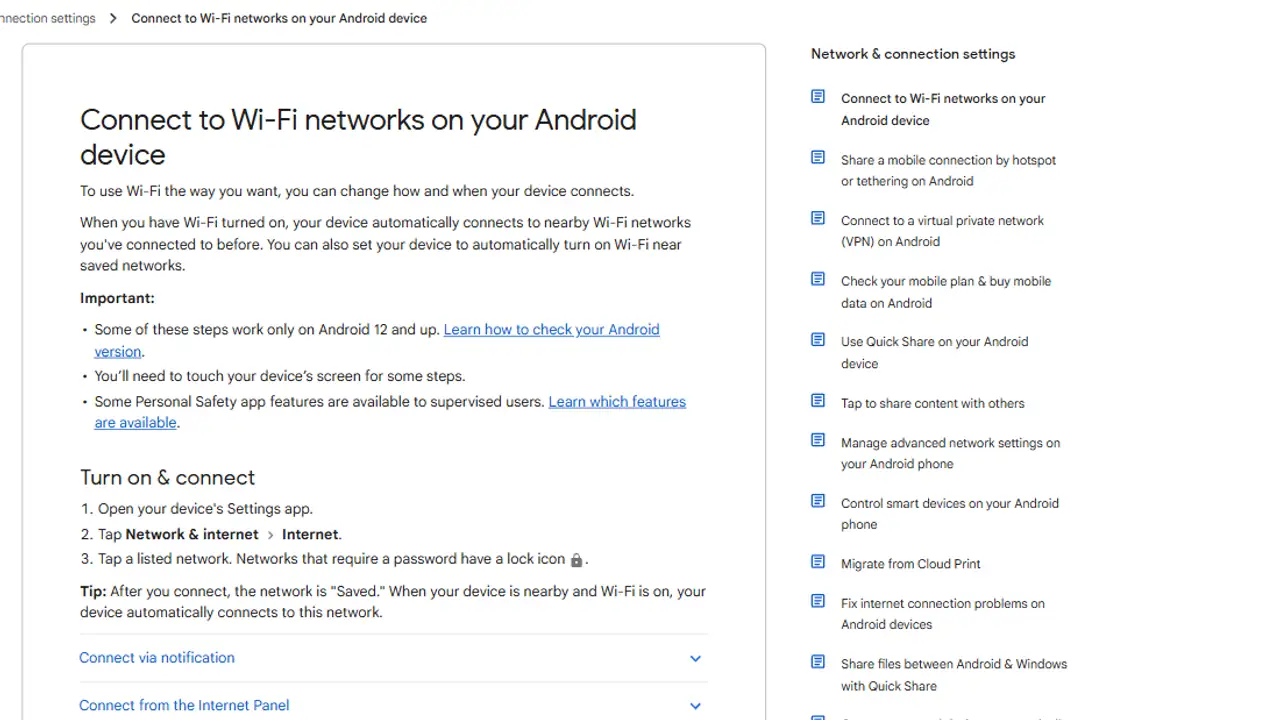
- Open the Settings app.
- Tap Network & internet > Internet. On some phones it is Connections > Wi-Fi or just Wi-Fi.
- Tap the network you are connected to, or the settings (gear) icon next to it.
The network you are on right now sits at the top of the list. To find a network you used before but are not near, look for Saved networks at the bottom of the Internet page. Whether you can share a saved network you are not connected to depends on the phone: Pixels allow it, while some other brands only share the current network.
Step 2: Tap Share and confirm it's you
Tap Share (it has a small QR code icon). Android asks for your screen lock first, so a person who borrows your unlocked phone for a moment can't just read the password off it. After you confirm, you get a screen titled something like Share Wi-Fi with a large QR code.
Step 3: Read the password or let a friend scan the code
You now have two options:
- Read it. On Pixel and many other phones, the line under the QR code says Wi-Fi password followed by the password. Type it into a laptop, TV or game console that can't scan codes.
- Scan it. Your friend opens the camera app (or Google Lens) on their phone and points it at the code. Most Android phones and iPhones then offer to join the network, with no typing.
Samsung Galaxy phones
On a Galaxy phone, open Settings > Connections > Wi-Fi, tap the gear icon next to the connected network, and tap QR code at the bottom. Samsung's own steps stop there: the code is meant to be scanned. Some recent One UI versions also show the password behind an eye icon in the network's details, but that depends on the version. If you don't see it, use the QR code trick below.
What if the password isn't shown as text?
A Wi-Fi QR code is not encrypted. It holds plain text in a standard format, roughly WIFI:T:WPA;S:NetworkName;P:YourPassword;;. That means you can read it yourself:
- Take a screenshot of the QR code screen.
- Open the screenshot in Google Photos and tap Lens, or open Google Lens and pick the screenshot.
- Lens shows the decoded network name and password. Copy the password from there.
Delete the screenshot when you're done. Anyone who sees that image can join your network, and screenshots are often backed up to the cloud.
Is it safe to share a Wi-Fi password?
Sharing the password puts the other device on your network, where it can see other devices such as printers, smart TVs and cameras. That is fine for family and close friends. For guests you don't know well, a separate guest network is better: most home routers can create one from their app or admin page, and it keeps visitors away from your own devices.
A few habits keep the password handy and your network safe:
- Save it in a password manager so you don't have to dig through settings next time. Our guide to free open-source password managers for Android compares Bitwarden, Proton Pass and KeePassDX.
- If you shared the password widely, change it on the router and reconnect your own devices.
- Don't install apps that promise to "show all Wi-Fi passwords" or "hack Wi-Fi". On a phone without root they can't read saved passwords; many only want permissions or show ads. Our safe download guide explains how to check an app before you install it.
Common questions
Can I see saved Wi-Fi passwords without unlocking the phone?
No. Android asks for your screen lock before it shows the Share screen. That is on purpose, and there is no setting to turn it off.
Can I see the passwords of all saved networks at once?
Not on a normal phone. Android keeps saved networks in a protected system file that only the system, or a rooted phone, can read. You have to open and share each network one by one. If you're thinking about root just for this, read our Magisk beginner's checklist first; it's a lot of risk for a small gain.
Why don't I see a Share button?
The network may use enterprise sign-in (common at offices and universities), where you log in with a username and password instead of one shared key. Those networks can't be shared by QR code. Phones older than Android 10 also lack the Share button, so ask the network owner or check the sticker on the router.
Can I share Wi-Fi with an iPhone?
Yes. An iPhone can scan the Android QR code with its Camera app and join the network. If you want to send files rather than Wi-Fi details between phones, see our guide to Quick Share tap-to-share.